In a world increasingly reliant on seamless digital connections, Wi-Fi has become ubiquitous. Yet, for many of us, the quest for truly stable, high-speed internet often leads back to the reliable embrace of a wired connection. This is where the humble yet powerful Ethernet Cable Adapter steps in, becoming an indispensable tool for anyone looking to bridge the gap between their device and the lightning-fast world of wired Ethernet. Whether you’re a gamer seeking zero lag, a professional transferring massive files, or simply frustrated by intermittent Wi-Fi, an Ethernet cable adapter offers a robust solution. At SDCMT, we’ve seen firsthand how this small device can dramatically transform your networking experience, turning potential bottlenecks into superhighways of data.
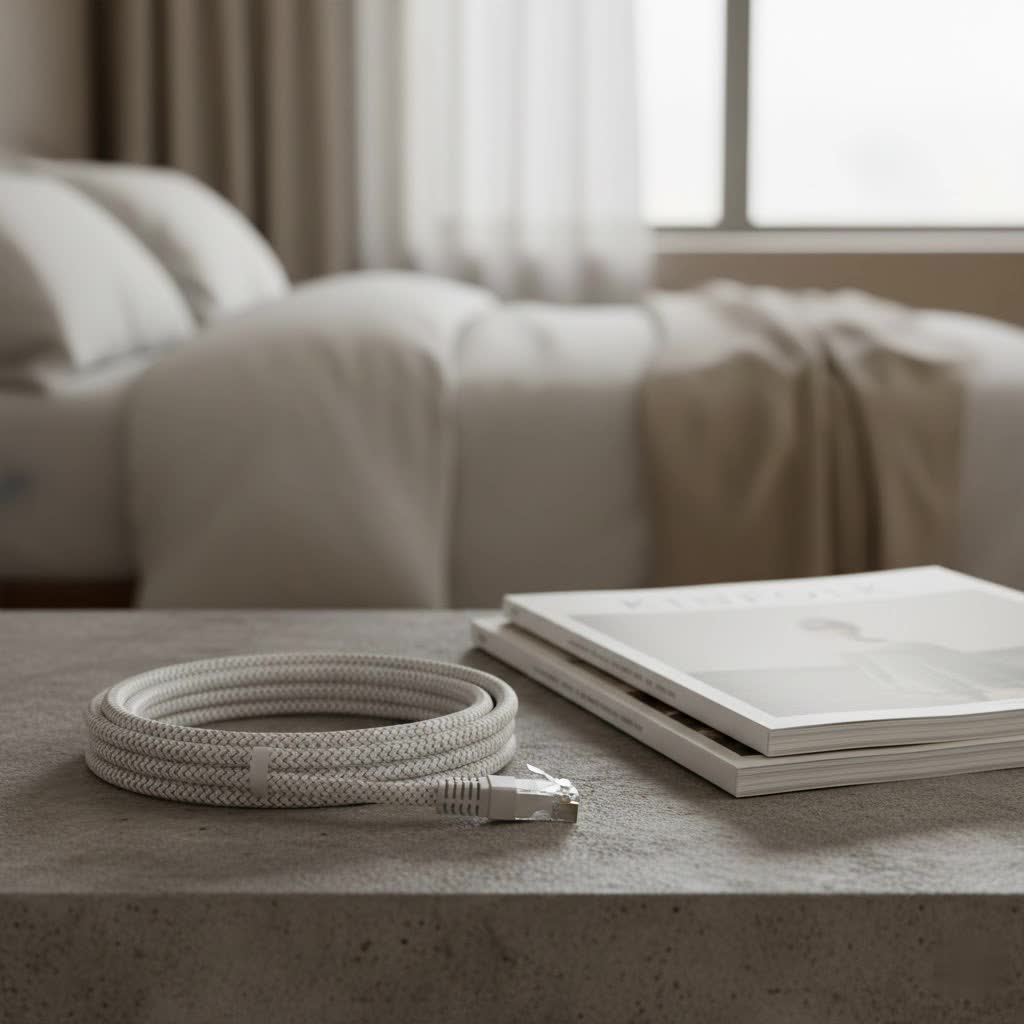
Understanding Ethernet Cable Adapters: Your Gateway to Wired Connectivity
What exactly is an Ethernet cable adapter, and why has it become so crucial in today’s tech landscape? Simply put, an Ethernet adapter is a piece of hardware that enables your device – be it a laptop, tablet, gaming console, or even certain smartphones – to connect to an Ethernet network via a wired connection. Think of it as a bridge, specifically designed to convert a common port type, like USB or Thunderbolt, into a standard Ethernet (RJ45) port.
The primary reason for their growing popularity stems from modern device design. Many sleek ultrabooks, thin-and-light laptops, and even some smart TVs have sacrificed the traditional built-in Ethernet port in favor of a slimmer profile. This design choice, while aesthetically pleasing, often leaves users without the option for a direct, wired network connection. An Ethernet cable adapter solves this problem, providing a quick and easy way to access a stable, high-performance network connection when Wi-Fi just isn’t cutting it.
Beyond filling a missing port, Ethernet adapters offer significant benefits. They enhance network security, as wired connections are inherently less susceptible to interception than wireless signals. They also guarantee superior speed and reliability, crucial for activities like competitive online gaming, uninterrupted 4K streaming, or transferring large datasets where every millisecond and byte count. As Daniel Chen, Lead Network Architect at SDCMT, often says, “An Ethernet adapter isn’t just a workaround; it’s a strategic upgrade for optimal network performance and security in a world increasingly reliant on stable connectivity.”
Types of Ethernet Cable Adapters: Finding Your Perfect Match
The world of Ethernet cable adapters is more diverse than you might initially think, with various types designed to cater to different devices and performance needs. Understanding these distinctions is key to selecting the right adapter for your specific setup.
USB to Ethernet Adapters
These are by far the most common and versatile adapters. They plug into your device’s USB port and provide an RJ45 Ethernet jack. Their performance largely depends on the USB standard they utilize:
- USB 2.0 Ethernet Adapters: These older models typically support Fast Ethernet speeds of up to 100 Mbps. While sufficient for basic internet browsing and email, they are not ideal for high-bandwidth tasks. They are often found in budget-friendly options and are compatible with virtually any USB-A port.
- USB 3.0 Ethernet Adapters: A significant upgrade from USB 2.0, these adapters can deliver Gigabit Ethernet speeds (up to 1000 Mbps or 1 Gbps). They are perfect for most home and office users, offering speeds comparable to a built-in Ethernet port. To achieve their full potential, they require a USB 3.0 (or higher) port on your device.
- USB-C to Ethernet Adapters: With the widespread adoption of USB-C ports on modern laptops, tablets, and even some smartphones, USB-C Ethernet adapters have become incredibly popular. These adapters leverage the high bandwidth of USB-C to support Gigabit Ethernet, 2.5 Gigabit Ethernet (2.5 Gbps), and even 5 Gigabit Ethernet (5 Gbps) speeds. Many USB-C adapters also support Power Delivery (PD), allowing you to charge your device while simultaneously using the Ethernet connection and potentially other USB ports.
|
Our Picks for the Best Ethernet Cable in 2026
As an Amazon Associate I earn from qualifying purchases.
|
||
| Num | Product | Action |
|---|---|---|
| 1 | Amazon Basics RJ45 Cat-6 Ethernet Patch Cable, 1Gpbs Transfer Speed, Gold-Plated Connectors, 50 Foot for PC, TV, Tablet, Router, Printer, Black |

|
| 2 | Cat 8 Ethernet Cable 50 ft, 6ft 10ft 20ft 30ft 40ft 75ft 100ft 150ft Heavy Duty High Speed Internet Network Cable 26AWG 40Gbps 2000Mhz,Professional LAN Cable Shielded in Wall,Indoor&Outdoor |
|
| 3 | Amazon Basics RJ45 Cat 6 Ethernet Patch Cable, 10Gpbs High-Speed Cable, 250MHz, Snagless, 10 Foot, Black for Printer |
|
| 4 | Vabogu Cat 8 Ethernet Cable, Heavy Duty High Speed Internet Network Cable, Multiple Size Options, 26AWG, 2000MHz 40Gbps with Gold Plated RJ45 Connectors, Shielded for Indoor & Outdoor Use, 6FT |
|
| 5 | UGREEN Cat 8 Ethernet Cable 6FT, High Speed Braided 40Gbps 2000Mhz Network Cord Cat8 RJ45 Shielded Indoor Heavy Duty LAN Cables Compatible for Gaming PC PS5 Xbox Modem Router 6FT |
|
| 6 | Jadaol Cat 6 Ethernet Cable 50 ft, 10Gbps Support Cat8 Cat7 Network, Flat RJ45 LAN Patch Cable, High-Speed Wired Internet Cable for Router, Modem, Switch, Gaming Consoles, PC, Streaming Devices, White |
|
| 7 | Amazon Basics 5-Pack RJ45 Cat 6 Ethernet Patch Cable, 10Gpbs High-Speed Cable, Gold-Plated, Snagless, 5 Foot, Multicolor |
|
| 8 | UGREEN Cat 8 Ethernet Cable 10FT, High Speed Braided 40Gbps 2000Mhz Network Cord Cat8 RJ45 Shielded Indoor Heavy Duty LAN Cables Compatible for Gaming PC PS5 Xbox Modem Router 10FT |
|
| 9 | Snowkids Cat 8 Ethernet Cable 15 FT, Strong Signal, High Speed 40Gbps 2000Mhz, Network Cord with RJ45 Internet Connector for TV/Printer/Computer/Modem/Router/ps-3/4/5, Braided Flat LAN Cable 15FT Grey |
|
| 10 | Amazon Basics Cat 6 Ethernet RJ45 10Gbps Flat Cable 100 ft Outdoor&Indoor White Solid Patch Cord with Clips for Router, Modem, PS4/5, Xbox, Gaming, Computer Network for High Speed LAN Internet |
|
Thunderbolt to Ethernet Adapters
Designed for devices with Thunderbolt ports (often found on Apple MacBooks and high-end Windows laptops), these adapters offer the highest bandwidth and performance among external solutions. Thunderbolt technology, which shares the USB-C connector shape, provides unparalleled data transfer rates, making these adapters capable of supporting 2.5 Gbps, 5 Gbps, and even 10 Gigabit Ethernet speeds, depending on the specific Thunderbolt generation and adapter. They are a premium choice for professionals and power users demanding the absolute best performance.
PCIe Ethernet Cards
While not “cable adapters” in the dongle sense, internal PCIe (PCI Express) Ethernet cards are essential for desktop users who need integrated, high-performance wired networking. These cards slot directly into your computer’s motherboard and can offer speeds far beyond typical external adapters, ranging from 10 Gigabit Ethernet to 100 Gigabit Ethernet, making them ideal for servers, high-end workstations, and specialized networking environments. They offer the most stable and highest-bandwidth internal solution.
USB Hubs with Integrated Ethernet Ports
For users who need to expand their device’s connectivity beyond just Ethernet, multi-port USB hubs often come with an integrated Ethernet port. These versatile devices allow you to connect multiple USB peripherals (like external hard drives, keyboards, and mice) while simultaneously providing a wired network connection. This is an excellent solution for laptops with limited ports, offering a tidy all-in-one docking experience.
Comparing Ethernet Cable Adapters: Speed, Compatibility, and Use Cases
Choosing the right Ethernet cable adapter involves a careful balance of speed, compatibility with your existing devices, and your specific usage scenarios. Here’s a comparative overview to help you navigate the options:
| Adapter Type | Max Theoretical Speed | Connector Type | Typical Use Cases | Compatibility (OS/Device) |
|---|---|---|---|---|
| USB 2.0 to Ethernet | 100 Mbps | USB-A | Basic internet, older devices, very low bandwidth | Windows, macOS, Linux (older), gaming consoles (some) |
| USB 3.0 to Ethernet | 1 Gbps | USB-A | General home/office, streaming, casual gaming | Windows, macOS, Linux, Chrome OS, some consoles |
| USB-C to Ethernet | 1 Gbps, 2.5 Gbps, 5 Gbps | USB-C | Modern laptops/tablets, high-speed internet, gaming, large file transfers | Windows, macOS, Linux, Chrome OS, iPad Pro/Air, Android (some) |
| Thunderbolt to Ethernet | 2.5 Gbps, 5 Gbps, 10 Gbps | Thunderbolt 3/4 (USB-C) | Professional workstations, content creation, high-performance gaming, MacBooks | macOS, high-end Windows laptops/desktops with Thunderbolt |
| PCIe Ethernet Card | 1 Gbps, 10 Gbps, 25 Gbps+ | PCIe Slot | Servers, enthusiast desktops, advanced networking | Windows, Linux (desktops only) |
It’s crucial to consider the “bottleneck” effect. An ultra-fast 5 Gbps adapter won’t make your internet connection faster if your ISP only provides 100 Mbps. Similarly, a Gigabit Ethernet adapter plugged into a USB 2.0 port will be limited to USB 2.0 speeds (around 480 Mbps, practically less). Always ensure your entire network chain – including your router, switches, and Ethernet cables – can support the desired speeds to fully leverage your adapter’s capabilities.
How to Choose the Right Ethernet Cable Adapter for Your Needs
Selecting the perfect Ethernet cable adapter doesn’t have to be complicated, but a few key considerations will ensure you make an informed decision that meets your connectivity demands.
-
Assess Your Device’s Available Ports:
- USB-A (Standard USB): If your laptop or desktop has older, rectangular USB ports, a USB 3.0 to Ethernet adapter (for Gigabit speeds) is your best bet. Ensure it’s a blue port for USB 3.0.
- USB-C: For modern devices with the reversible USB-C port, a USB-C to Ethernet adapter is ideal. Look for models supporting USB 3.1, USB 3.2, or Thunderbolt for higher speeds (2.5 Gbps, 5 Gbps, or even 10 Gbps). If your device supports Power Delivery (PD) through USB-C, consider an adapter that also offers PD pass-through, so you can charge your device while using the Ethernet.
- Thunderbolt: If you own a MacBook or a high-end PC with Thunderbolt 3 or 4 ports, a Thunderbolt Ethernet adapter will provide the fastest and most reliable external connection.
- PCIe Slot: For desktop computers, a PCIe Ethernet card offers the most integrated and highest-performing solution.
-
Determine Your Desired Network Speed:
- Match Your Internet Plan: There’s no point in buying a 2.5 Gbps adapter if your internet service provider (ISP) only delivers 100 Mbps. Choose an adapter that matches or slightly exceeds your current internet speed for future-proofing.
- Consider Your Local Network: If you’re building a high-speed local network for large file transfers between devices, a 2.5 Gbps or 5 Gbps adapter might be worth the investment, even if your internet speed is lower.
- Gaming & Streaming: For these activities, a Gigabit (1 Gbps) adapter is usually sufficient, but higher speeds can offer an extra edge in reducing latency if your network infrastructure supports it.
-
Check Operating System (OS) Compatibility:
- Most modern USB and Thunderbolt Ethernet adapters are “plug-and-play” with Windows (10/11), macOS, and Chrome OS, meaning they work right out of the box without manual driver installation.
- For Linux users or older OS versions, you might need to check the manufacturer’s website for specific driver downloads. Always verify compatibility to avoid frustrating setup issues.
-
Evaluate Additional Features:
- Integrated USB Hub: If your device has limited ports, an adapter with additional USB ports (turning it into a small dock) can be incredibly convenient.
- LED Indicators: Link and activity LEDs on the adapter are useful for quickly verifying connectivity status.
- Build Quality & Durability: Look for adapters from reputable brands that feature robust construction, especially if you plan to carry it frequently.
- Cable Length: Consider the built-in cable length for dongle-style adapters; too short might be inconvenient, too long can add clutter.
-
Set Your Budget:
- Prices vary significantly based on speed, features, and brand. Basic USB 2.0 adapters can be very inexpensive, while high-speed USB-C or Thunderbolt adapters with additional features will naturally cost more. Balance your performance needs with what you’re willing to spend. Remember, sometimes investing a little more upfront can save you headaches and performance issues down the line.
By carefully considering these factors, you can confidently choose an Ethernet cable adapter that seamlessly integrates with your devices and enhances your network experience.
Installation and Connection: Getting Your Ethernet Adapter Up and Running
Setting up an Ethernet cable adapter is typically a straightforward process, designed to be as user-friendly as possible. Here’s a step-by-step guide to get you connected:
-
Unpack Your Adapter: Take your Ethernet cable adapter out of its packaging. Most adapters are compact, dongle-like devices.
-
Connect the Adapter to Your Device:
- Locate an available USB-A, USB-C, or Thunderbolt port on your laptop, desktop, or other compatible device.
- Firmly plug the adapter’s connector (USB-A, USB-C, or Thunderbolt) into the corresponding port on your device. Ensure it’s fully seated.
-
Driver Installation (If Necessary):
- Many modern Ethernet adapters are “plug-and-play.” This means your operating system (Windows, macOS, Chrome OS) will automatically detect the adapter and install the necessary drivers in a matter of seconds. You might see a notification indicating “Device setup complete” or “New hardware detected.”
- If your OS doesn’t automatically install drivers, or if you’re using an older operating system or a specialized device (like certain Linux distributions), you may need to install drivers manually. Typically, you’ll find these on the adapter manufacturer’s website. Download the correct driver for your OS and follow the installation instructions. It’s a good practice to have these drivers downloaded before you start, especially if you anticipate having no internet connection initially.
-
Connect the Ethernet Cable:
- Take a standard Ethernet cable (RJ45, often Cat5e, Cat6, or Cat7 depending on your speed requirements).
- Plug one end of the Ethernet cable into the RJ45 port on your newly connected adapter. You should hear a distinct click, indicating it’s securely latched.
- Plug the other end of the Ethernet cable into an available LAN port on your router, modem, or network switch. Again, ensure it clicks into place.
-
Verify the Connection:
- Check Adapter LEDs: Most Ethernet adapters have small LED indicators. A solid light often indicates a successful link (physical connection), while a blinking light signifies data activity.
- Check Your Device’s Network Status:
- Windows: Look for the network icon in the system tray (usually a computer monitor or globe icon). It should show a wired connection. You can also go to “Settings” > “Network & Internet” > “Ethernet” to see its status.
- macOS: Check the Wi-Fi icon in the menu bar; it should switch to an Ethernet symbol, or you can go to “System Settings” > “Network” to see the Ethernet connection status.
- Test with a Browser: Open your web browser and try to visit a website (e.g., sdcmt.com). If it loads, congratulations, you’re connected!
Quick Checklist for Installation:
- [ ] Adapter securely plugged into device’s USB/Thunderbolt port.
- [ ] Ethernet cable securely plugged into adapter.
- [ ] Ethernet cable securely plugged into router/modem/switch LAN port.
- [ ] Adapter’s link LEDs are active.
- [ ] Device’s OS shows an active wired connection.
- [ ] Can access the internet or local network resources.
Troubleshooting Common Ethernet Cable Adapter Issues
Even with the most reliable equipment, sometimes connectivity issues arise. Don’t panic! Most problems with Ethernet cable adapters can be resolved with a few simple troubleshooting steps.
No Connection or Limited Connectivity
This is the most common issue, often manifesting as “No Internet Access” or an unidentified network.
-
Check Physical Connections: This is always the first step.
- Loose Cables: Ensure the Ethernet cable is securely plugged into both the adapter and your router/modem/switch. Give them a gentle push.
- Damaged Cables/Ports: Inspect the Ethernet cable for any visible kinks, cuts, or frayed wires. Check the adapter’s RJ45 port for bent pins or debris. If you suspect a damaged cable, try a different one.
- Wrong Port: On your router, ensure the Ethernet cable is plugged into one of the numbered LAN ports, not the “WAN” or “Internet” port which connects to your modem.
-
Restart Your Devices: A classic IT solution that often works wonders.
- Device Reboot: Restart your computer, laptop, or gaming console.
- Network Hardware Cycle: Unplug your Ethernet adapter, then power cycle your router and modem (unplug them from power for 30 seconds, then plug them back in and wait for them to fully boot up). Replug the Ethernet adapter.
-
Enable the Ethernet Adapter (Windows):
- Sometimes, the adapter might be disabled. Press
Windows Key + X, then select “Network Connections.” Right-click on your Ethernet adapter (it might be labeled “Ethernet” or “USB Ethernet Adapter”) and select “Enable” if it’s currently disabled.
- Sometimes, the adapter might be disabled. Press
-
Update or Reinstall Drivers: Outdated or corrupted drivers are a frequent culprit.
- Update: Open Device Manager (search for it in Windows), expand “Network adapters,” right-click on your Ethernet adapter, and select “Update driver.” Choose “Search automatically for drivers.”
- Reinstall: If an update doesn’t work, right-click the adapter in Device Manager and select “Uninstall device.” Then, unplug the adapter, restart your computer, and plug the adapter back in. Windows should automatically reinstall the driver. If not, download the latest driver from the adapter manufacturer’s website.
-
Run Network Troubleshooter:
- Windows: Go to
Settings > Network & Internet > Status, scroll down, and click “Network troubleshooter.” Follow the prompts. - macOS: Go to
System Settings > Network, click “Details…” next to your Ethernet connection, and use any diagnostic tools available.
- Windows: Go to
-
Reset TCP/IP Settings (Windows Advanced):
- Open Command Prompt as an administrator.
- Run these commands, pressing Enter after each:
netsh winsock resetnetsh int ip resetipconfig /releaseipconfig /renewipconfig /flushdns
- Restart your computer after running these commands.
Slow Speeds
If you have a connection but it’s not performing as expected:
- Check USB Port: Ensure your Gigabit or multi-Gigabit adapter is plugged into a USB 3.0 (or higher) port, not a USB 2.0 port, which will limit its speed.
- Verify Cable Type: Use a Cat5e, Cat6, or higher-rated Ethernet cable. Older, damaged, or low-quality cables can impede speed.
- Network Hardware Speed: Confirm your router and any switches in between also support Gigabit (or higher) speeds. An older 100 Mbps switch will cap your speed.
- ISP Speed: Double-check your internet service plan. Your local network can only be as fast as your internet connection allows.
Intermittent Connection
If your connection drops in and out sporadically:
- Driver Issues: Reinstalling or updating drivers often resolves this.
- Faulty Adapter/Cable: Try a different adapter or cable to rule out hardware failure.
- Power Management (Windows): In Device Manager, right-click your Ethernet adapter, go to “Properties” > “Power Management” tab, and uncheck “Allow the computer to turn off this device to save power.”
If you’ve exhausted these steps and the issue persists, consider contacting your adapter’s manufacturer support or your internet service provider, as the problem might lie with their equipment or service.
Maintenance Tips for Extending Your Ethernet Cable Adapter’s Lifespan
An Ethernet cable adapter is a durable piece of equipment, but a little care goes a long way in ensuring its longevity and consistent performance. Here are some simple maintenance tips from the experts at SDCMT:
-
Keep Ports and Connectors Clean: Dust, dirt, and debris can accumulate in the RJ45 port of your adapter and your device’s USB/Thunderbolt port. This can interfere with electrical contacts and lead to connection issues.
- Use compressed air to gently blow out any dust from the ports.
- Avoid using liquids or abrasive materials.
-
Handle with Care:
- Avoid Excessive Bending: Do not sharply bend the Ethernet cable or the adapter’s built-in cable, especially near the connectors. This can damage the internal wiring.
- Gentle Insertion/Removal: Always insert and remove the adapter and Ethernet cable gently. Forcing them can damage the ports on both the adapter and your device. Never pull by the cable itself; always grasp the connector housing.
-
Proper Storage:
- When not in use, especially if you’re a frequent traveler, store your adapter in a protective pouch or case. This prevents it from getting scratched, crushed, or exposed to elements that could damage it.
- Avoid leaving it dangling by the cable, as this puts strain on the connector.
-
Regular Driver Checks: While most adapters are plug-and-play, manufacturers occasionally release updated drivers that can improve performance, enhance compatibility, or fix bugs. Periodically check the manufacturer’s website for driver updates. Keeping your OS updated also helps ensure compatibility with your network hardware.
-
Environmental Considerations:
- Temperature and Humidity: Avoid exposing your adapter to extreme temperatures or high humidity, which can degrade its internal components over time.
- Pet and Child Proofing: If you have pets that chew or small children who might play with cables, ensure the adapter and connected cables are out of reach to prevent accidental damage.
By following these simple guidelines, your Ethernet cable adapter will remain a reliable part of your networking arsenal for years to come, providing that critical wired connection whenever and wherever you need it.
Frequently Asked Questions (FAQ)
Q: Do I need drivers for my Ethernet cable adapter?
A: Most modern Ethernet cable adapters are plug-and-play for popular operating systems like Windows (10/11), macOS, and Chrome OS, meaning they install automatically. However, for some older OS versions, Linux distributions, or specific high-performance adapters, you might need to download and install drivers manually from the manufacturer’s website.
Q: Is a USB Ethernet adapter as fast as a built-in Ethernet port?
A: In many cases, yes, especially for Gigabit Ethernet speeds (1 Gbps). A high-quality USB 3.0 or USB-C Gigabit Ethernet adapter can perform comparably to a built-in Gigabit Ethernet port. For speeds beyond 1 Gbps (e.g., 2.5 Gbps, 5 Gbps, 10 Gbps), Thunderbolt adapters and advanced USB-C adapters can also match or exceed the performance of some built-in ports, though internal PCIe cards often offer the highest sustained bandwidth for desktops.
Q: Can I use an Ethernet adapter for gaming?
A: Absolutely! In fact, using an Ethernet adapter for gaming is highly recommended. It provides a more stable connection with lower latency (ping) compared to Wi-Fi, which can significantly improve your online gaming experience by reducing lag and preventing disconnections. Just make sure to choose an adapter that supports at least Gigabit Ethernet for optimal performance.
Q: What’s the difference between USB 2.0 and USB 3.0 Ethernet adapters?
A: The main difference lies in speed. USB 2.0 Ethernet adapters are limited to Fast Ethernet speeds of up to 100 Mbps, which is suitable for basic tasks but can be a bottleneck for faster internet connections. USB 3.0 Ethernet adapters, leveraging the higher bandwidth of USB 3.0, can achieve Gigabit Ethernet speeds of up to 1000 Mbps (1 Gbps), making them much faster and ideal for modern high-speed networks.
Q: How do I know if my Ethernet adapter is working correctly?
A: You can check a few things:
- LED Indicators: Most adapters have small LEDs. A solid light usually indicates a successful physical connection (link), and a blinking light indicates data transfer.
- Operating System Status: In Windows, check the “Network & Internet” settings. In macOS, check “System Settings” > “Network.” Your device should show an active wired Ethernet connection.
- Internet Access: The most straightforward test is to simply open a web browser and try to access a website.
Conclusion
In an age where seamless connectivity is paramount, the Ethernet cable adapter emerges as a true unsung hero, ensuring you always have access to the fast, stable, and secure wired network you deserve. From overcoming the port limitations of modern devices to delivering a significant boost in performance for demanding tasks like gaming, streaming, and large data transfers, these versatile tools are indispensable.
At SDCMT, our mission is to empower you with the knowledge to make confident decisions about your network. By understanding the different types of Ethernet cable adapters, how to choose the right one based on your device’s ports and speed requirements, and how to properly install and maintain it, you can unlock the full potential of your internet connection. Don’t let slow or unreliable Wi-Fi hold you back. Upgrade your connection with an Ethernet cable adapter today and experience the difference a stable wired network can make. We encourage you to explore our other guides and share your experiences as you optimize your wired world!
