Ever found yourself wrestling with spotty Wi-Fi during a crucial online meeting or a thrilling gaming session? A reliable wired connection, powered by an Ethernet cable, is often the unsung hero of a stable home or office network. And when it comes to covering a modest distance, a 25-foot Ethernet cable hits a sweet spot, offering ample reach without the complexities of signal degradation often associated with much longer runs. This guide will walk you through everything you need to know about selecting, installing, troubleshooting, and maintaining your 25-foot Ethernet cable to ensure you’re always getting the best possible connection.
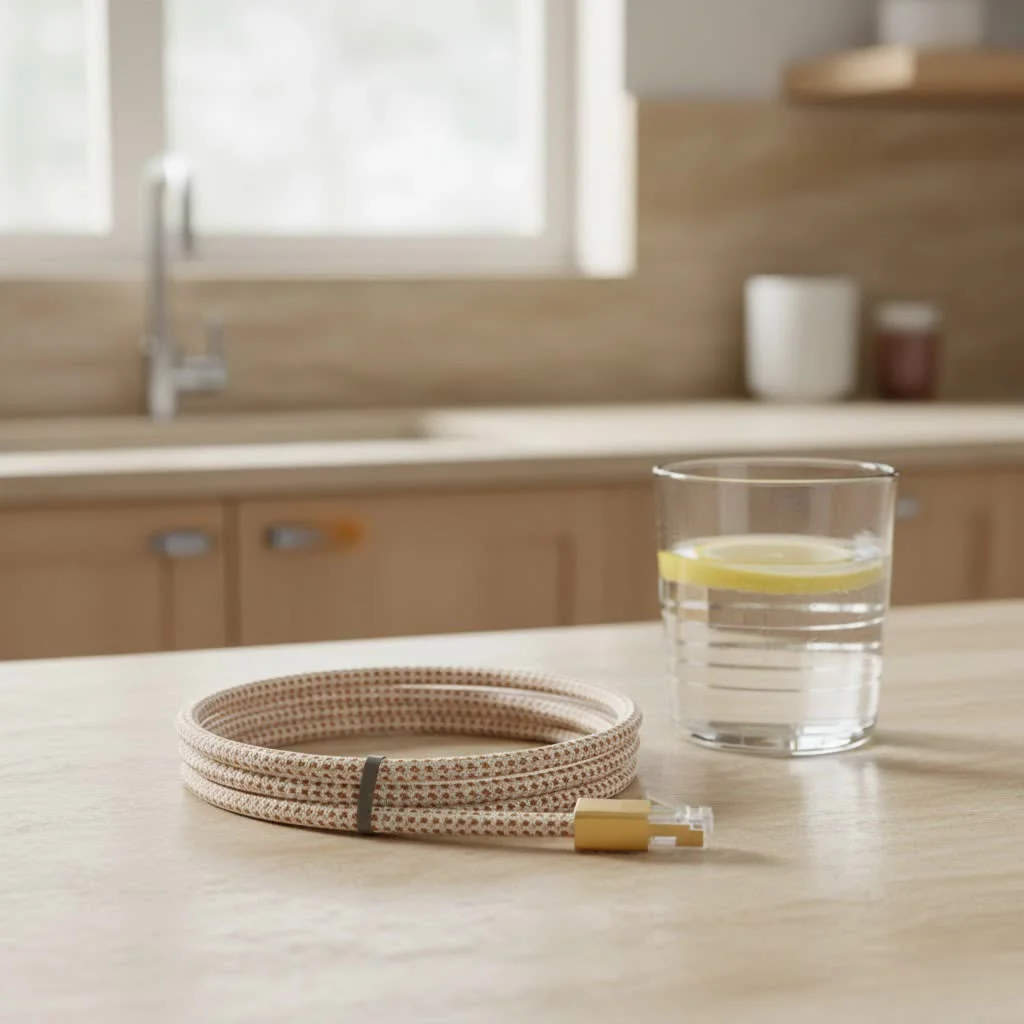
Understanding Ethernet Cable Types for Your 25-Foot Run
Navigating the world of Ethernet cables can feel like deciphering a secret code, with terms like Cat5e, Cat6, and Cat7 flying around. For a 25-foot distance, you have several excellent options, each with its own advantages.
Cat5e: The Economical Choice
Cat5e (Category 5e) cables are the workhorse of many home networks. They are designed to support Gigabit Ethernet (1 Gbps) speeds over distances up to 100 meters (328 feet) and operate at a bandwidth of up to 100 MHz. For a 25-foot run, Cat5e is perfectly capable of delivering fast, stable connections for internet browsing, video streaming, and online gaming, assuming your internet service plan is 1 Gbps or less. They are generally the most affordable option.
Cat6: The Sweet Spot for Most Users
If you’re looking for a balance of performance and cost, Cat6 cables are often the recommended choice. They handle Gigabit Ethernet (1 Gbps) over the full 100-meter distance and can even support 10 Gigabit Ethernet (10 Gbps) for shorter runs, typically up to 55 meters (180 feet). With a bandwidth of up to 250 MHz, Cat6 offers better crosstalk prevention and improved signal-to-noise ratio compared to Cat5e, making it a robust option for a 25-foot length, especially if you plan to upgrade your network equipment or internet speed in the future.
Cat6a and Beyond: Future-Proofing and High-Demand Needs
For those aiming for maximum future-proofing or running demanding applications, Cat6a (Augmented Category 6) is a strong contender. It supports 10 Gigabit Ethernet (10 Gbps) over the full 100-meter distance and operates at 500 MHz. While a 25-foot Cat6a cable might be considered overkill for most home users today, it offers superior performance in environments with high electromagnetic interference (EMI) and ensures stability for multi-gigabit speeds. Categories like Cat7 and Cat8 offer even higher speeds and bandwidth but are primarily designed for data centers and specialized enterprise applications, making them largely unnecessary and significantly more expensive for a 25-foot connection in a typical home or small office.
“For most home and small office setups, a Cat6 25-foot Ethernet cable offers an ideal blend of performance, reliability, and cost-effectiveness. It’s truly a ‘set it and forget it’ solution for years to come,” advises John Miller, a veteran network architect with SDCMT.
Why 25 Feet is Just Right: Speed and Performance
Does the length of an Ethernet cable really affect its speed? This is a common question, and for a 25-foot Ethernet cable, the answer is usually “no” for modern categories.
Standard Ethernet cables are designed to perform optimally up to 100 meters (328 feet). Within this range, there’s no noticeable speed reduction due to length. Your 25-foot cable is well within these specifications, meaning you won’t experience any signal degradation or slowdowns that would impact your internet speed or local network transfer rates. The maximum speed you achieve will be limited by your internet service provider’s plan, your router/modem, and the Ethernet ports on your devices, not the 25-foot cable itself.
Here’s a quick comparison of common cable types and their capabilities, all of which easily handle a 25-foot run:
| Cable Category | Max Speed (up to 100m) | Max Bandwidth | Ideal Use for 25-Foot Cable |
|---|---|---|---|
| Cat5e | 1 Gbps | 100 MHz | Everyday internet, gaming |
| Cat6 | 1 Gbps (10 Gbps up to 55m) | 250 MHz | High-speed internet, 4K streaming, future-proofing for 2.5/5 Gbps at shorter runs |
| Cat6a | 10 Gbps | 500 MHz | Demanding networks, maximum future-proofing |
| Cat7/Cat8 | 10 Gbps (Cat7), 25/40 Gbps (Cat8, shorter distances) | 600 MHz (Cat7), 2000 MHz (Cat8) | Specialized, typically overkill for home/small office |
As you can see, even a Cat5e cable will comfortably support Gigabit speeds over 25 feet. A Cat6 offers a nice upgrade path, especially if your network devices support faster-than-Gigabit connections (like 2.5 Gbps or 5 Gbps Ethernet, which is becoming more common).
Choosing Your Ideal 25-Foot Ethernet Cable
Selecting the right 25-foot Ethernet cable for your needs involves a few key considerations. It’s about finding the perfect blend of performance, durability, and cost.
What’s Your Current Internet Speed?
|
Our Picks for the Best Ethernet Cable in 2026
As an Amazon Associate I earn from qualifying purchases.
|
||
| Num | Product | Action |
|---|---|---|
| 1 | Cat 8 Ethernet Cable 50 ft, 6ft 10ft 20ft 30ft 40ft 75ft 100ft 150ft Heavy Duty High Speed Internet Network Cable 26AWG 40Gbps 2000Mhz,Professional LAN Cable Shielded in Wall,Indoor&Outdoor |

|
| 2 | Vabogu Cat 8 Ethernet Cable, Heavy Duty High Speed Internet Network Cable, Multiple Size Options, 26AWG, 2000MHz 40Gbps with Gold Plated RJ45 Connectors, Shielded for Indoor & Outdoor Use, 6FT |
|
| 3 | Amazon Basics 5-Pack RJ45 Cat 6 Ethernet Patch Cable, 10Gpbs High-Speed Cable, Gold-Plated, Snagless, 5 Foot, Multicolor |
|
| 4 | Amazon Basics Cat 6 Ethernet RJ45 10Gbps Flat Cable 100 ft Outdoor&Indoor White Solid Patch Cord with Clips for Router, Modem, PS4/5, Xbox, Gaming, Computer Network for High Speed LAN Internet |
|
| 5 | Amazon Basics RJ45 Cat 6 Ethernet Patch Cable, 10Gpbs High-Speed Cable, 250MHz, Snagless, 10 Foot, Black for Printer |
|
| 6 | Amazon Basics RJ45 Cat-6 Ethernet Patch Cable, 1Gpbs Transfer Speed, Gold-Plated Connectors, 50 Foot for PC, TV, Tablet, Router, Printer, Black |
|
| 7 | UGREEN Cat 8 Ethernet Cable 10FT, High Speed Braided 40Gbps 2000Mhz Network Cord Cat8 RJ45 Shielded Indoor Heavy Duty LAN Cables Compatible for Gaming PC PS5 Xbox Modem Router 10FT |
|
| 8 | Jadaol Cat 6 Ethernet Cable 50 ft, 10Gbps Support Cat8 Cat7 Network, Flat RJ45 LAN Patch Cable, High-Speed Wired Internet Cable for Router, Modem, Switch, Gaming Consoles, PC, Streaming Devices, White |
|
| 9 | UGREEN Cat 8 Ethernet Cable 6FT, High Speed Braided 40Gbps 2000Mhz Network Cord Cat8 RJ45 Shielded Indoor Heavy Duty LAN Cables Compatible for Gaming PC PS5 Xbox Modem Router 6FT |
|
| 10 | Snowkids Cat 8 Ethernet Cable 15 FT, Strong Signal, High Speed 40Gbps 2000Mhz, Network Cord with RJ45 Internet Connector for TV/Printer/Computer/Modem/Router/ps-3/4/5, Braided Flat LAN Cable 15FT Grey |
|
First, consider your internet plan. If you have a 100 Mbps plan, even a Cat5e cable will provide full speed. For Gigabit (1 Gbps) plans, Cat5e or Cat6 are excellent choices. If you’re fortunate enough to have a multi-gigabit plan (2.5 Gbps, 5 Gbps, or even 10 Gbps), then Cat6 (for shorter runs up to 55m for 10G) or Cat6a (for full 100m at 10G) would be more appropriate, giving you the necessary headroom. Remember, your cable can only perform as well as your slowest network component.
Considering Future Upgrades
Are you planning to upgrade your internet speed or network equipment in the next few years? Investing in a Cat6 cable now, even if Cat5e meets your current needs, provides valuable future-proofing. The price difference between Cat5e and Cat6 for a 25-foot length is often minimal, making Cat6 a wise investment for long-term reliability.
Environment Matters: Shielded vs. Unshielded
Ethernet cables come in two main types: Unshielded Twisted Pair (UTP) and Shielded Twisted Pair (STP).
- UTP (Unshielded Twisted Pair): These are the most common and are suitable for most home and office environments where electromagnetic interference (EMI) is not a significant concern. They are flexible and easier to work with.
- STP (Shielded Twisted Pair): These cables have extra shielding (foil or braid) around the twisted pairs to protect against EMI. If your 25-foot run is near power lines, fluorescent lights, heavy machinery, or other sources of interference, an STP cable might be beneficial. However, STP cables are typically thicker, less flexible, and require proper grounding for the shielding to be effective. For a typical home setup, UTP is generally sufficient.
Flat vs. Round Cables
While most Ethernet cables are round, you can also find flat variants.
- Round Cables: These are the standard, offering better crosstalk resistance due to their internal structure. They are generally more robust and perform better over distance, though for 25 feet, the difference is negligible.
- Flat Cables: These are thinner and can be more easily hidden under carpets or along baseboards. However, their internal wiring can be more susceptible to interference and bending damage if not handled carefully. For a short, discreet run, a flat 25-foot Ethernet cable can be a practical choice.
DIY Installation: Setting Up Your 25-Foot Ethernet Cable
Installing a 25-foot Ethernet cable might seem daunting, but with the right tools and a systematic approach, it’s a straightforward DIY project. A wired connection offers unparalleled stability for your network.
Essential Tools You’ll Need
Before you start, gather these tools to make the process smooth:
- Wire Cutters: For clean cuts.
- Wire Stripper: To remove the cable jacket without damaging internal wires.
- RJ45 Crimping Tool: To securely attach connectors. Many also include cutting and stripping functions.
- RJ45 Connectors: Ensure they match your cable type (e.g., Cat6 connectors for Cat6 cable).
- Cable Tester: Crucial for verifying your connections.
- Fish Tape (optional): If you’re running the cable through walls or ceilings.
- Drill and Bits (optional): If you need to make holes through studs or walls.
- Cable Ties or Clips: For neat cable management.
Planning Your Cable Path
Even for a 25-foot cable, a little planning goes a long way.
- Map it Out: Decide the exact route your cable will take from your router/modem to your device.
- Measure Accurately: Measure the distance, adding a few extra feet for slack and future adjustments. 25 feet gives you good flexibility, but don’t pull it taut.
- Avoid Interference: Route cables away from electrical wires, power outlets, fluorescent lights, and large appliances like microwaves to minimize potential electromagnetic interference.
- Protect the Cable: Avoid sharp bends (which can damage internal wires and reduce performance) and pinch points. Use cable protectors if running across floors or through doorways.
Step-by-Step Connection Guide
Making your own custom-length cable or repairing one involves terminating the ends with RJ45 connectors.
- Cut and Strip: Use wire cutters to trim the cable to your desired 25-foot length, plus a few inches of slack. Then, use the stripper to remove about 1 inch of the outer jacket from one end.
- Untwist and Arrange: You’ll see four pairs of twisted wires. Gently untwist them and straighten the individual wires.
- Follow the Wiring Standard: Arrange the wires according to either the T568A or T568B standard. It is critical to use the same standard on both ends of the cable. T568B is more common in North America:
- White/Orange, Orange, White/Green, Blue, White/Blue, Green, White/Brown, Brown
- Trim and Insert: Once arranged correctly and flattened, trim the ends of the wires straight, leaving about 0.5 inches exposed. Carefully insert them into the RJ45 connector, ensuring each wire slides into its designated pin slot and the cable jacket is slightly inside the connector for strain relief.
- Crimp: Insert the RJ45 connector into your crimping tool and squeeze firmly until you hear a click. This secures the wires and punches the pins through the insulation.
- Repeat: Repeat steps 1-5 for the other end of your 25-foot cable, ensuring you use the same wiring standard.
Testing Your Connection (Checklist)
A successful installation isn’t complete until you’ve tested it.
- Visual Check: Inspect both RJ45 connectors to ensure all 8 wires are properly seated and the pins are intact.
- Cable Tester: Plug both ends of your 25-foot Ethernet cable into a cable tester. A good tester will confirm continuity for all 8 wires and identify any miswires (like split pairs or shorts).
- Network Device Test: Connect the cable between your router and a device (e.g., computer, gaming console). Check for link lights on both the device and the router. Run a speed test or try accessing the internet to confirm connectivity and performance.
Troubleshooting Common 25-Foot Ethernet Cable Issues
Even the most carefully installed 25-foot Ethernet cable can sometimes encounter problems. Here’s how to diagnose and fix common issues.
“No Connection” or “Limited Connectivity”
If your device isn’t recognizing the Ethernet connection or has limited access, start with the basics:
- Check Physical Connections: Ensure both ends of your 25-foot Ethernet cable are securely plugged into your device and your router/switch. A loose connection is a very common culprit.
- Swap Ports: Try plugging the cable into a different Ethernet port on your router/switch and on your device (if available). A faulty port can mimic a cable problem.
- Test with Another Cable: If you have another working Ethernet cable, even a shorter one, try it. If the connection works, your 25-foot cable might be the issue.
- Reboot Devices: Sometimes, a simple reboot of your router, modem, and the connected device can resolve connectivity glitches.
Slow Speeds or Intermittent Drops
If your wired connection is slower than expected or drops frequently, consider these factors:
- Inspect for Damage: Visually examine your 25-foot Ethernet cable for any kinks, sharp bends, cuts, or frayed ends. Even minor damage can degrade signal quality.
- Interference: Ensure your cable isn’t running parallel to or coiled near electrical cords, power strips, or large electronic devices that could cause electromagnetic interference. Rerouting the cable or using a shielded cable might help.
- Outdated Cable/Hardware: While less likely for a 25-foot run, ensure your cable category (e.g., Cat5e vs. Cat6) is appropriate for your internet speed. Also, check that your network interface card (NIC) and router ports support the desired speeds (e.g., Gigabit Ethernet).
- Poor Termination: If you made your own cable, improper crimping or incorrect wire arrangement (T568A/B mismatch) can cause errors. A cable tester can identify these issues.
Physical Damage and Wear
Ethernet cables, despite their robust nature, are susceptible to physical wear and tear.
- Visible Damage: Look for obvious signs of damage like a chewed-up jacket (thanks, pets!), crush marks from furniture, or severely twisted sections. If found, replacing the cable is usually the best solution.
- Bent/Broken Connectors: The RJ45 connectors can be fragile. A bent or broken tab, or corroded pins, can prevent a solid connection. If the connector is damaged, it can often be replaced by re-terminating the cable end.
“I’ve seen countless hours wasted on troubleshooting when the root cause was a cable bent at a 90-degree angle behind a desk. Proper routing is just as important as the cable quality itself,” comments Sarah Jenkins, a network infrastructure specialist.
Extending the Lifespan: Maintenance Tips for Your Ethernet Cable
A 25-foot Ethernet cable, when properly cared for, can provide years of reliable service. Simple maintenance steps can prevent issues and extend its lifespan.
Regular Visual Inspections
Make it a habit to periodically check your 25-foot Ethernet cable, especially if it’s in a high-traffic area or frequently moved.
- Look for Kinks and Bends: Straighten out any tight bends that could stress the internal wires.
- Check for Cuts or Frays: Inspect the cable jacket for any nicks or exposed wires. Replace damaged cables immediately to prevent further issues or potential safety hazards.
- Examine Connectors: Ensure the RJ45 connectors are free from dust, corrosion, or physical damage.
Proper Handling and Organization
How you handle and organize your cables significantly impacts their longevity.
- Avoid Excessive Bending: Ethernet cables are not designed for sharp turns. Give them gentle curves, especially around corners.
- No Pulling on the Cable: Always pull on the connector itself, not the cable, when unplugging it to prevent damage to the internal wires.
- Use Cable Management: Utilize cable ties, clips, or sleeves to bundle your 25-foot cable neatly. This prevents tangling, reduces strain, and keeps your setup organized. A tidy cable is a happy cable!
- Labeling: For more complex setups, labeling both ends of your 25-foot Ethernet cable can save significant time during future troubleshooting or reconfigurations.
Cleaning and Protection
Dust and environmental factors can also play a role in cable performance.
- Keep it Clean: Dust can accumulate on connectors, potentially affecting signal transfer. Use a dry, clean cloth or compressed air to gently clean the RJ45 connectors and cable surface.
- Protect from Environment: If your 25-foot cable is in an area with potential moisture, extreme temperatures, or UV exposure (e.g., near a window with direct sunlight), consider using outdoor-rated or shielded cables designed to withstand such conditions.
Frequently Asked Questions (FAQ)
Q: Does a 25-foot Ethernet cable affect internet speed?
A: No, for all common Ethernet cable categories (Cat5e, Cat6, Cat6a, etc.), a 25-foot length is well within their maximum specified distance (typically 100 meters or 328 feet) for optimal speed. You will not experience any signal degradation or speed loss due to this length.
Q: Is Cat5e good enough for a 25-foot run?
A: Yes, Cat5e is perfectly capable of delivering Gigabit Ethernet (1 Gbps) speeds over a 25-foot distance, which is sufficient for most home internet plans and common applications like streaming and gaming. It’s a cost-effective choice.
Q: What’s the difference between Cat6 and Cat6a for this length?
A: For a 25-foot length, both Cat6 and Cat6a can easily support 1 Gbps and even 10 Gbps speeds. The main difference lies in their maximum distance for 10 Gbps (Cat6 up to 55m, Cat6a up to 100m) and higher bandwidth/better noise reduction for Cat6a. For 25 feet, Cat6 is generally sufficient, but Cat6a offers superior future-proofing.
Q: Can I run a 25-foot Ethernet cable near power lines?
A: It’s best to avoid running Ethernet cables parallel to power lines to minimize potential electromagnetic interference (EMI). If you must, try to cross power lines at a 90-degree angle. Using a shielded Ethernet cable (STP) can also help reduce interference.
Q: How do I test if my 25-foot cable is working correctly?
A: The most reliable way is to use an Ethernet cable tester, which checks continuity and identifies any wiring faults. You can also perform a basic test by connecting it between two active network devices (e.g., router to PC) and checking for link lights and internet connectivity.
Q: Should I buy a pre-made 25-foot cable or make my own?
A: For a standard 25-foot length, buying a pre-made cable is often more convenient and ensures factory-quality termination. Making your own is beneficial if you need a very specific, non-standard length or enjoy DIY projects, but requires special tools and knowledge of wiring standards.
Conclusion
A 25-foot Ethernet cable is an indispensable tool for building a stable, high-performance wired network. By understanding the different cable types, knowing that this length poses no speed limitations, and following best practices for installation and maintenance, you can ensure your devices enjoy a fast, reliable connection for years to come. Whether you’re a casual internet user, a passionate gamer, or setting up a robust home office, investing in the right 25-foot Ethernet cable and caring for it properly will undoubtedly enhance your digital experience. So, go ahead, plug in, and enjoy the seamless connectivity your 25-foot Ethernet cable provides!
Get our weekly buyer guide
Practical specs, not advice. Unsubscribe anytime.